When STUDIO Starts Acting Up
When using the no-code web design tool "STUDIO," it occasionally starts behaving strangely. "A button isn't responding," "the preview isn't displaying correctly," "the editor is running slowly" -- many users have likely experienced these issues.
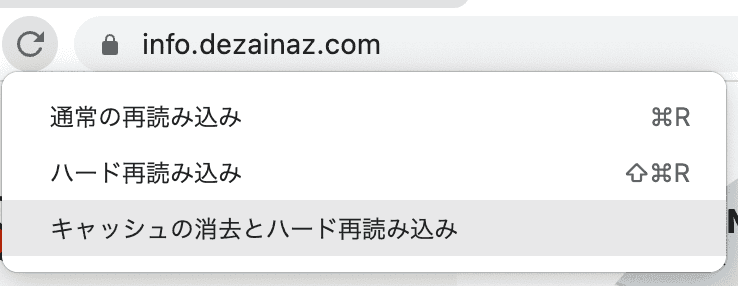
This article introduces two solutions for when these troubles occur.
Method 1: Page Reload
The simplest and most effective method is a page reload.
Steps
- Mac: Press `Cmd + R` to reload the editor page
- Windows: Press `Ctrl + R` to reload the editor page
Reload the preview page as well. Most issues are fixed with just this.
Caution
If you reload while text is in an editing/selected state, there's a risk of losing that text. Before reloading, always confirm (click outside the text box) any text you're editing first.
Method 2: Clear Cache and Hard Reload
If a standard reload doesn't solve the problem, clear the browser cache and force a hard reload.
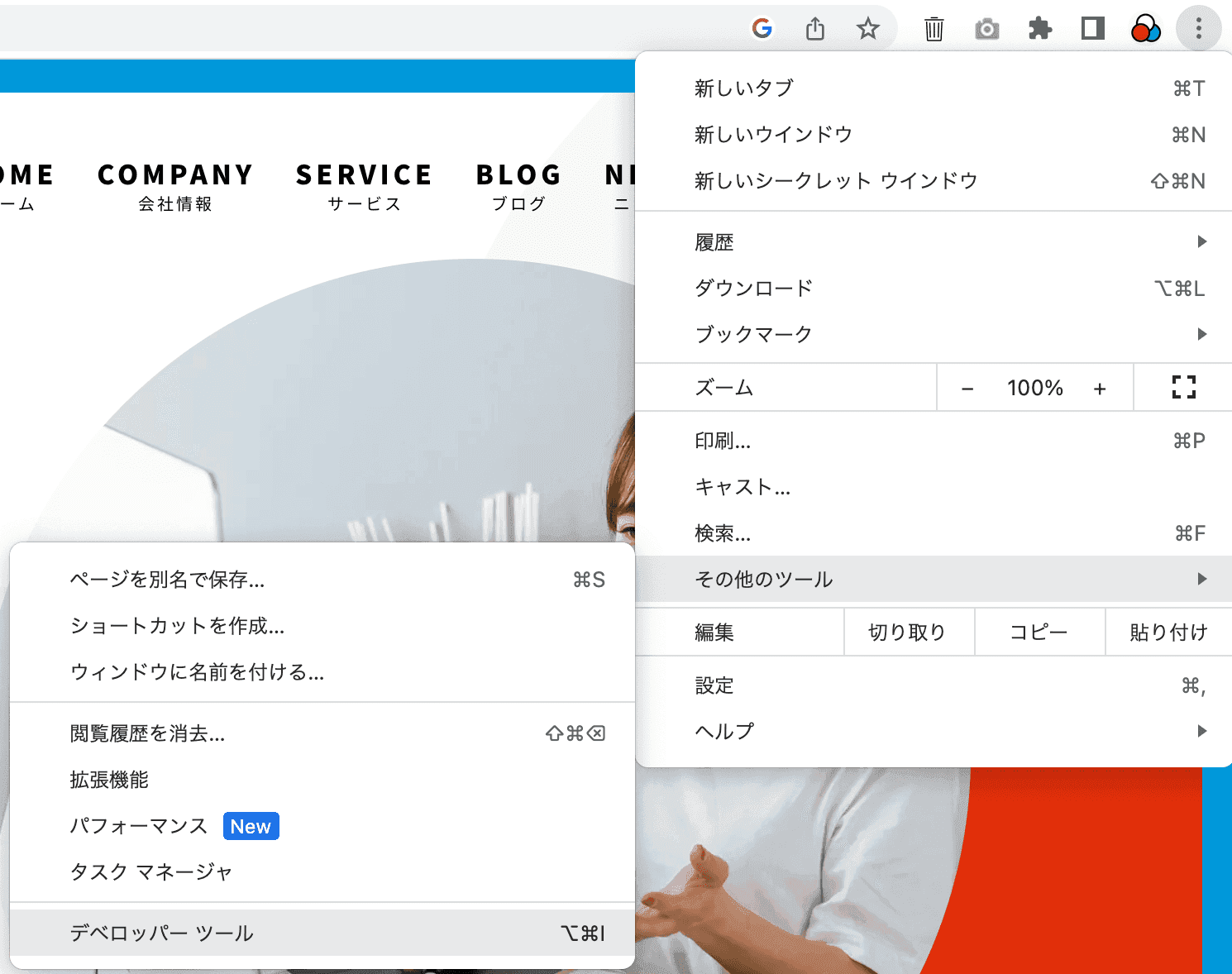
Steps for Chrome
- Click the menu icon (three dots) in the top right
- Select "More Tools" then "Developer Tools"
- With Developer Tools open, right-click the browser's reload button
- Select "Empty Cache and Hard Reload"
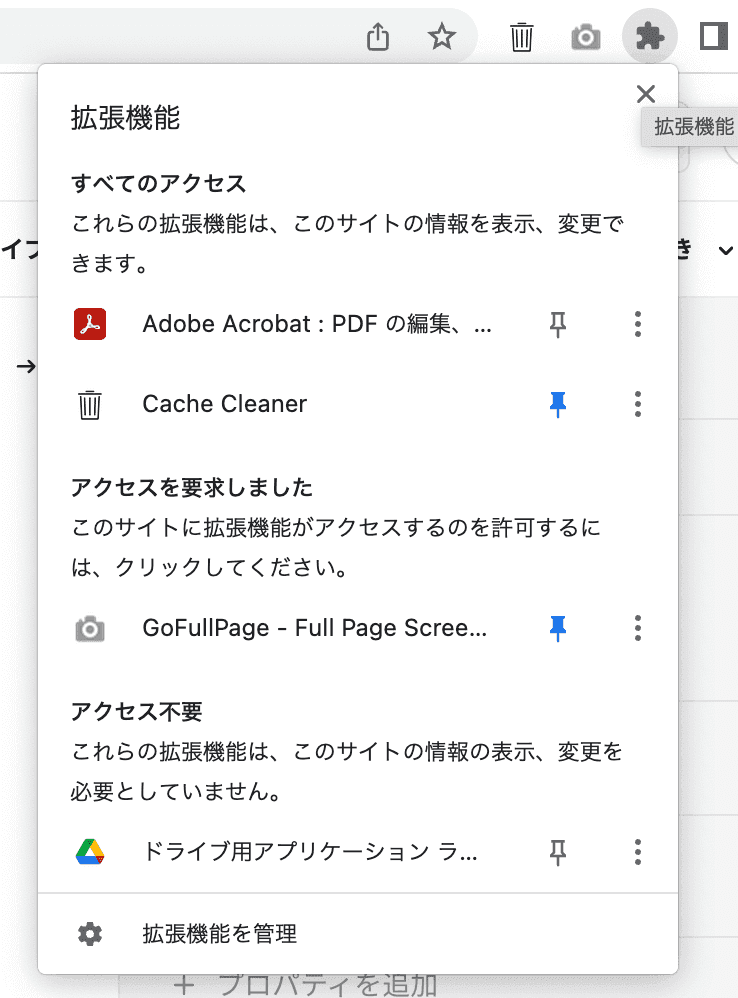
Tip for Frequent Cache Clearing
If you need to clear cache frequently, the Chrome extension "Cache Cleaner" is handy. It lets you clear cache with a single click, improving your workflow efficiency.
Why Do Issues Occur?
STUDIO issues are often caused by the following:
- Loading errors -- Resource loading failures due to temporary network instability
- Cache issues -- Conflicts between old cache and new content
- Browser memory shortage -- Increased browser load from extended work sessions
Conclusion
If you experience issues with STUDIO, first try a page reload. If that doesn't work, try clearing the cache and doing a hard reload. This will fix most problems. If the issue still persists, consider restarting the browser or contacting STUDIO support.