
Flipping Images in Studio Is Actually Easy
"I want to flip an image in Studio, but I don't know how" — this is a common question. In fact, by using the scale feature in the Motion tab, you can easily achieve both horizontal and vertical flipping.
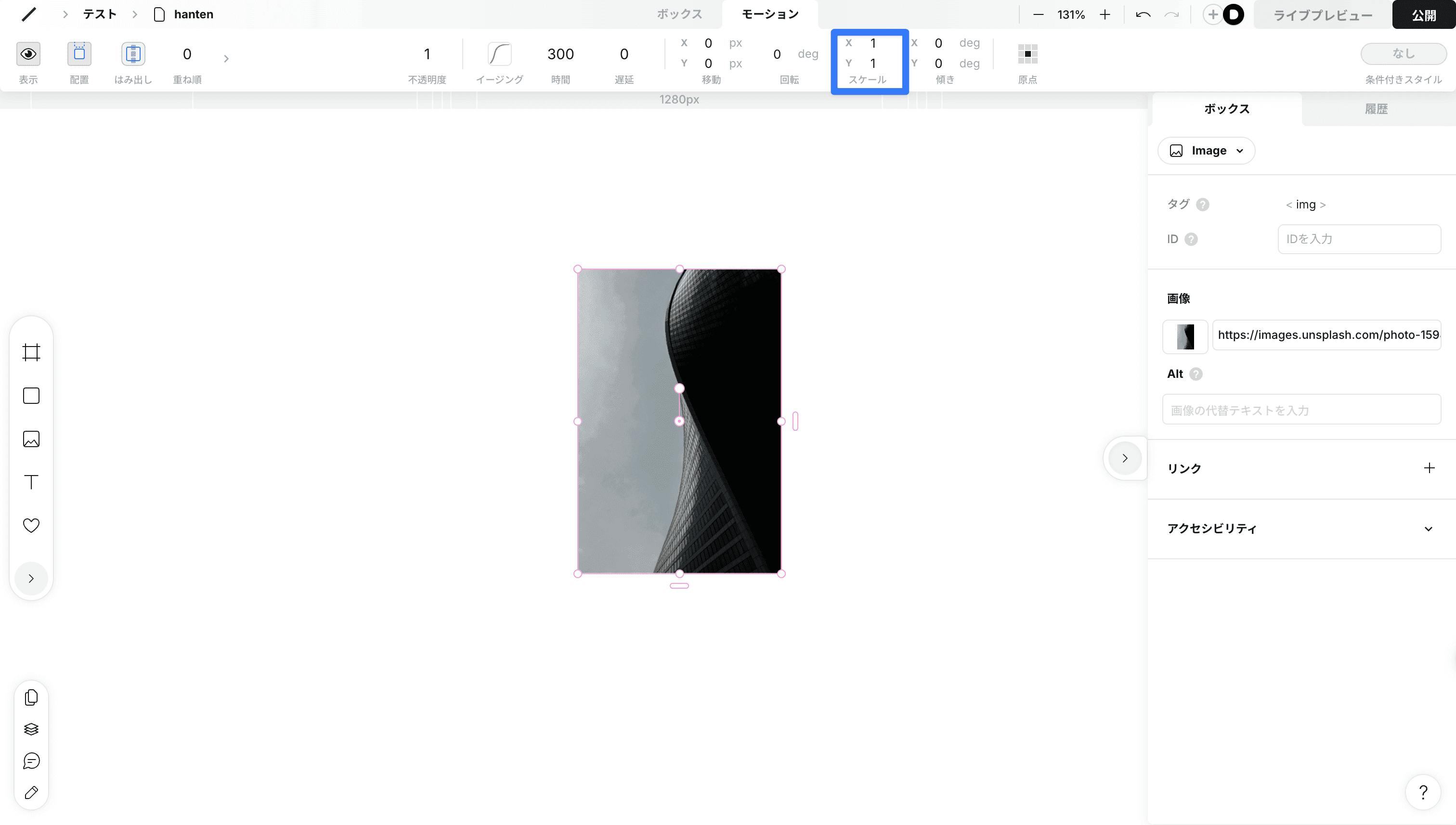
How to Flip Horizontally
Follow these steps to flip an image horizontally:
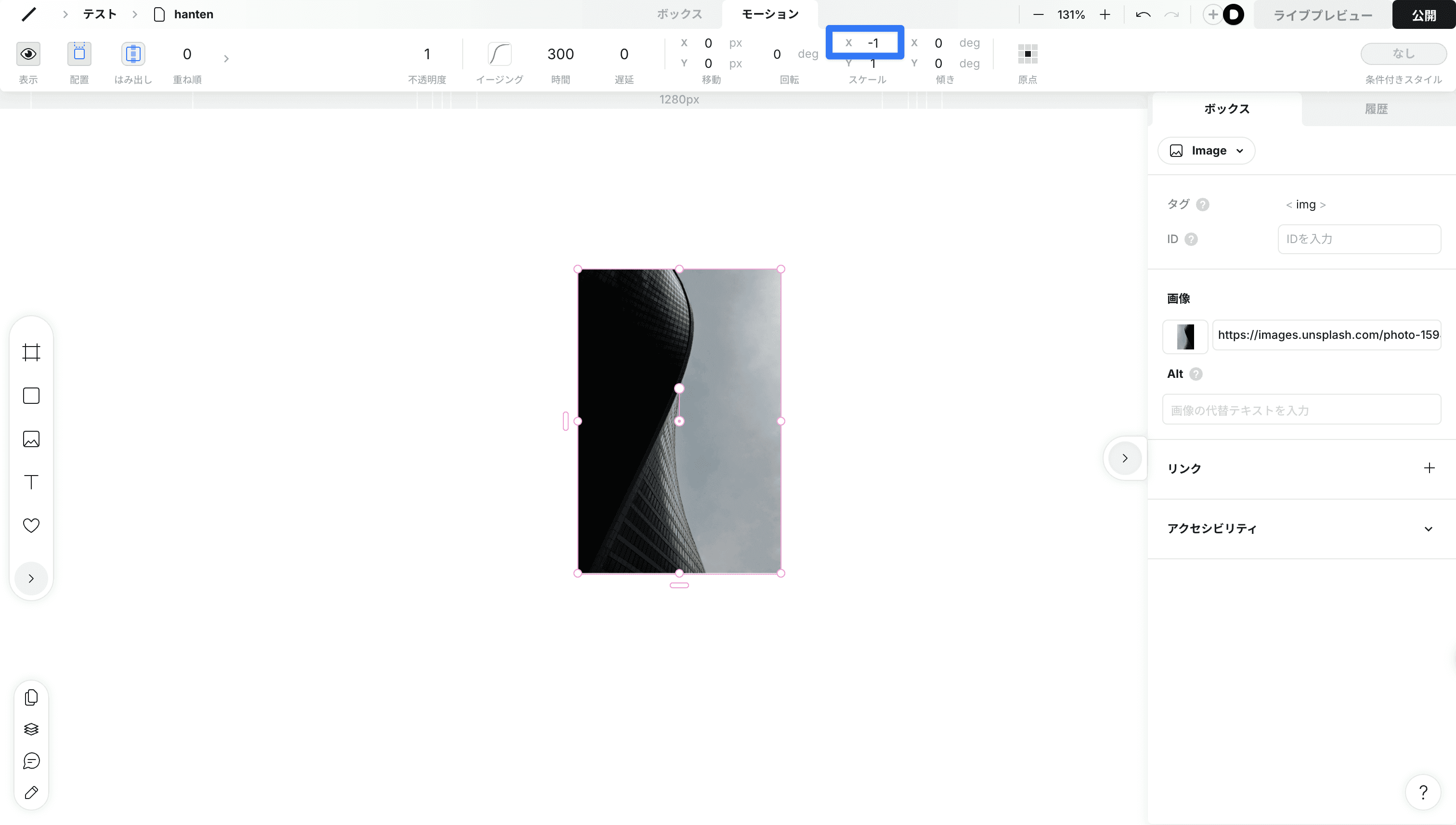
- Click to select the image element you want to flip
- Open the "Motion" tab in the right panel
- Change the X value from "1" to "-1" in the scale settings
- Confirm in the preview
That's all it takes to flip the image horizontally.
How to Flip Vertically
Vertical flipping follows the same process:

- Select the image element you want to flip
- Open the Motion tab
- Change the Y value from "1" to "-1" in the scale settings
- Confirm in the preview
Important Notes
Effects on Text and Other Elements
Setting the scale to a negative value may affect not just the image but also any text or other elements contained within it. To avoid unintended flipping, it is recommended to group the target elements before making adjustments.
The Importance of Preview Checking
Always check the display in the preview after flipping. Pay particular attention to:
- Anti-aliasing artifacts
- Whether text has become mirrored
- Consistency with the surrounding layout
Advanced: Interactive Flip Effects
By using motion triggers, you can also implement interactive effects such as dynamically flipping an image on hover.
For example, in a card-style UI, you could create an effect where the image flips horizontally on mouse hover to reveal information on the back. Try adding fun interactions to your site with dynamic expressions that respond to user actions.
SEO and Display Quality Notes
Even when flipping images, readability and accessibility still matter. Decorative flips are usually fine, but product photos and people photos can carry meaning through direction.
- Do not flip images that contain readable text into mirrored text
- Check that product logos and brand marks still face the right direction
- Match image alt text to the final displayed content
- Confirm that mobile cropping still looks natural
Studio's editor behavior may change over time, so check the official Studio site and help resources when working on production sites.
Conclusion
Flipping images in Studio is easy for beginners using the scale feature in the Motion tab. Simply change the X value to -1 for horizontal flipping, or the Y value to -1 for vertical flipping. It's a simple technique that expands your design possibilities.