Links Not Working in STUDIO?
When building websites with STUDIO, you may encounter issues like "a link was set but nothing happens when clicked" or "an anchor link doesn't jump to the right place."
This article summarizes 3 main causes and their solutions.
Solution 1: Check ID Attributes
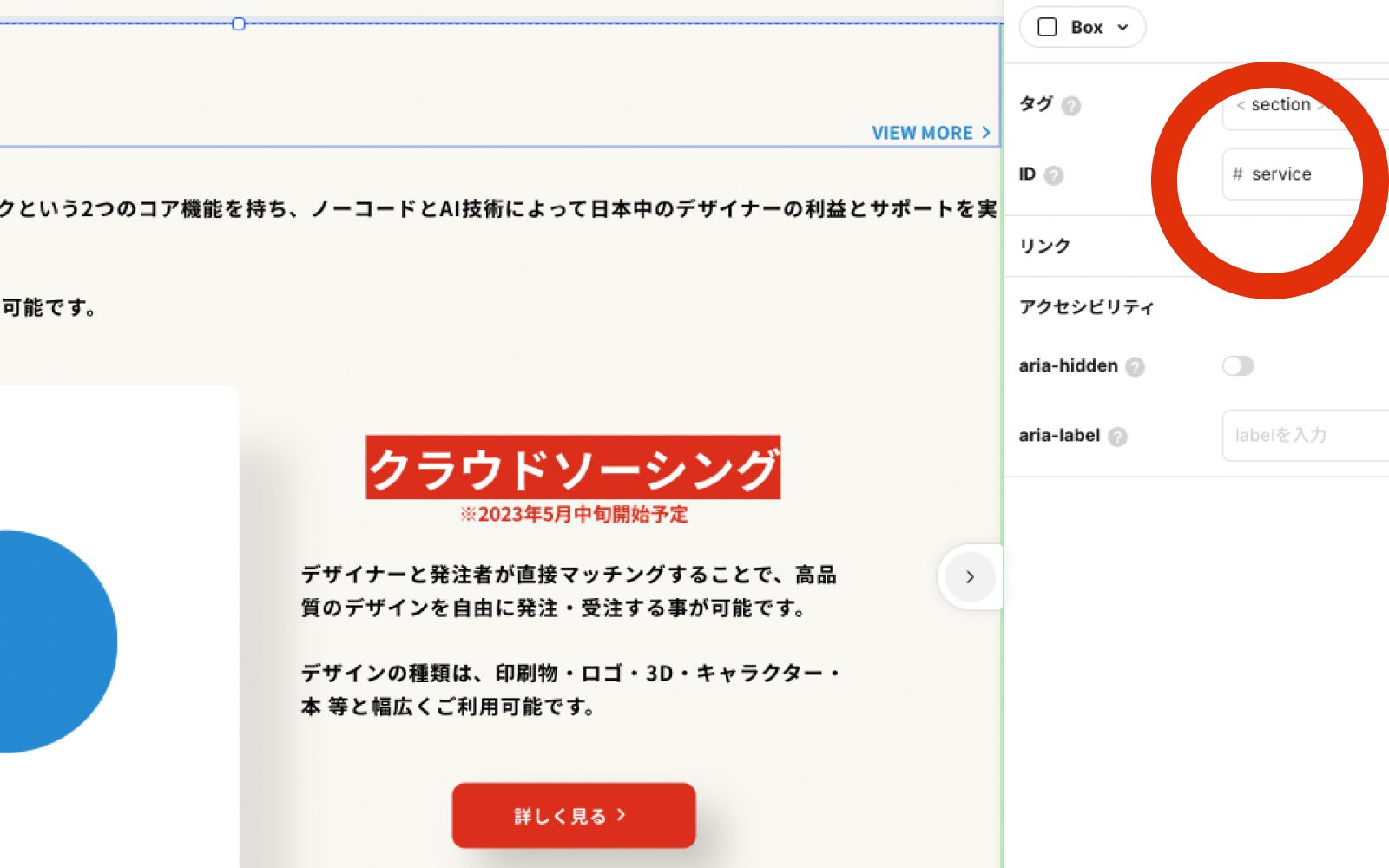
The most common cause when setting up anchor links is incorrect ID attribute configuration.

Key Points
- Anchor link ID attributes need a "#" at the beginning
- The ID set on the target element should NOT include "#"
- The value set in the link source's URL field should include "#"
For example, for an anchor link to a "Contact" section:
- Target element's ID: `contact`
- Link source URL: `#contact`
Solution 2: Adjust Layer Order
Another element may be overlapping the element that has the link. This is hard to notice visually, but if a transparent element or an element with large padding overlaps on top, the click won't reach the link.
How to Fix
- Check the layer order (z-index) of elements in the design editor
- Increase the z-index of the link element
- Or decrease the z-index of the overlapping element
Solution 3: Dealing with Opacity-0 Layers
Sometimes you want to hide an element while preserving its space, so you set opacity to 0. However, elements with opacity 0 still retain their click area, which prevents links underneath from responding.
Recommended Alternative
Instead of setting opacity to 0, it's recommended to set the scale value to 0. Elements with scale 0 also lose their click area, allowing links below to function normally.
Debugging Tips
When investigating link issues, the following steps are effective:
- Check actual click behavior in preview mode
- Examine layers around the link element in the editor
- Check for any hidden elements
- Double-check the link URL for typos
Pre-Publish Link Checklist
Broken links can cause lost conversions after launch. Before publishing, check at least the following:
- Header, CTA, and footer links are clickable
- Anchor links move to the intended sections
- Link areas are not covered by other elements on mobile
- External links are set to open in the right way
- Form, booking, and other conversion-critical links are tested on a real device
STUDIO behavior and UI can change over time, so if the cause is unclear, also check the latest information on the official Studio site and help resources.
Conclusion
Link issues in STUDIO are almost always caused by one of three things: ID attribute settings, layer order, or opacity settings. If you remember these 3 checkpoints, you'll be able to resolve most link problems.