What Is the Figma to Studio Plugin?
"Figma to Studio" is a plugin that lets you automatically build content designed in Figma using the no-code tool "Studio." It significantly reduces production time compared to building from scratch and enables site creation without an engineer.
Key Features
1. Automatic Layout Conversion
Automatically converts Figma design data into Studio's box layout system. Your carefully crafted Figma designs are imported in a format optimized for Studio's layout system.
2. Responsive Support
Automatically generates responsive layouts for mobile, tablet, and desktop. No need to manually set breakpoints.
3. Automatic Asset and Font Import
Images and Studio-compatible fonts are automatically imported. No manual asset migration is needed, enabling a seamless design handoff.
How to Use It
- Install the plugin — Install "Figma to Studio" from the Figma Community
- Launch the plugin in Figma — Open it from the right-click menu or plugin manager
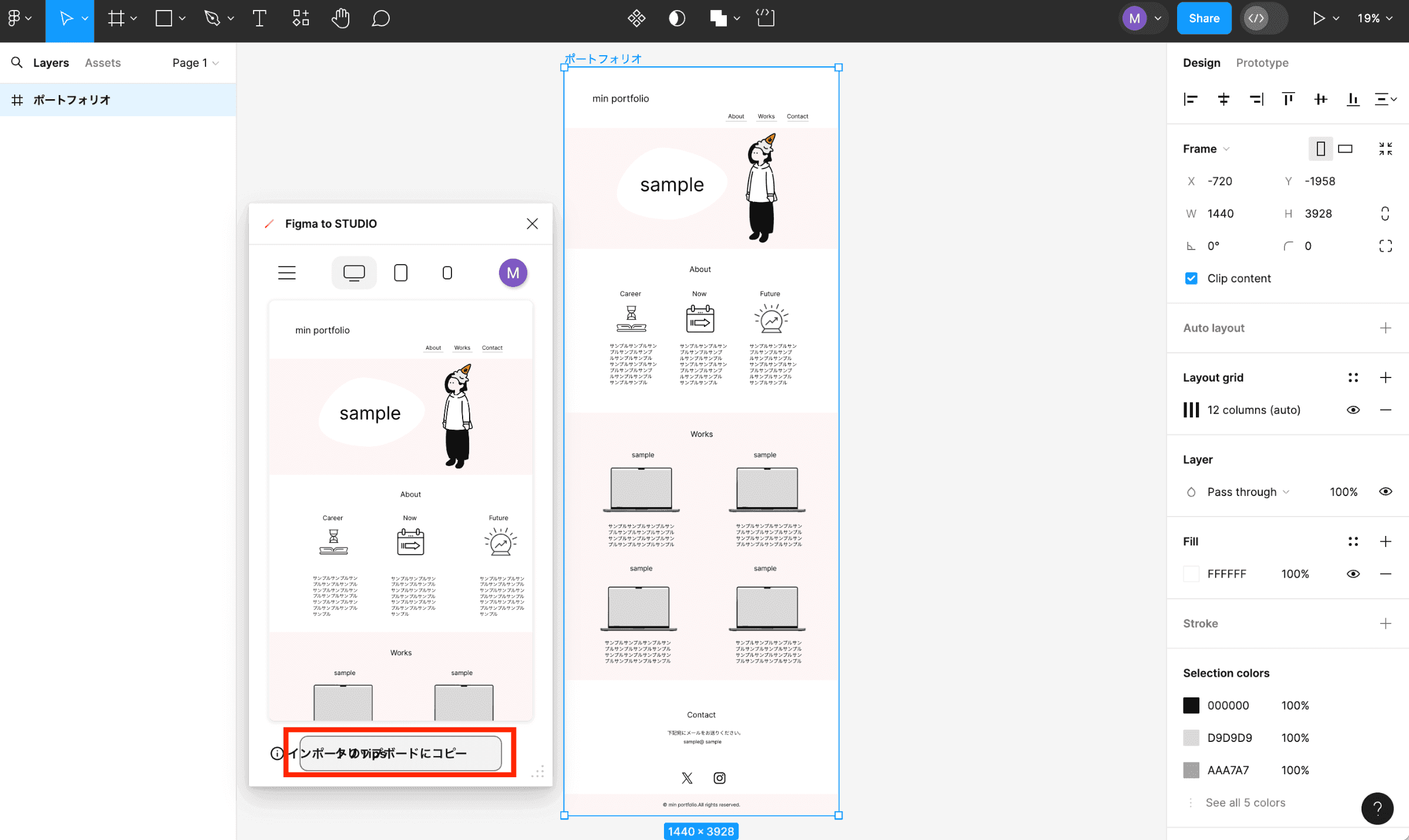
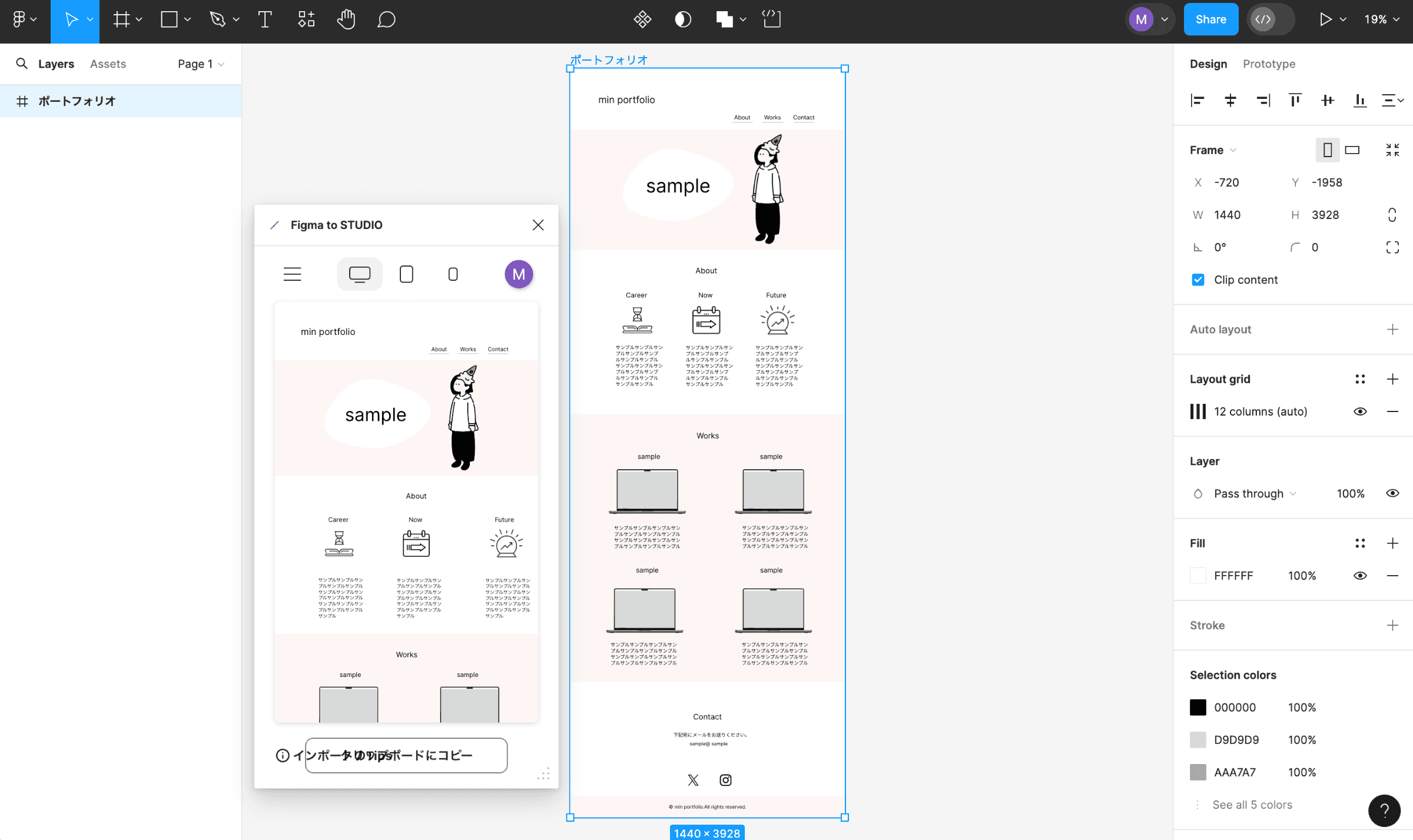
- Select your design — Select the frame you want to migrate to Studio
- Copy to clipboard — Use the plugin's feature to copy the design data
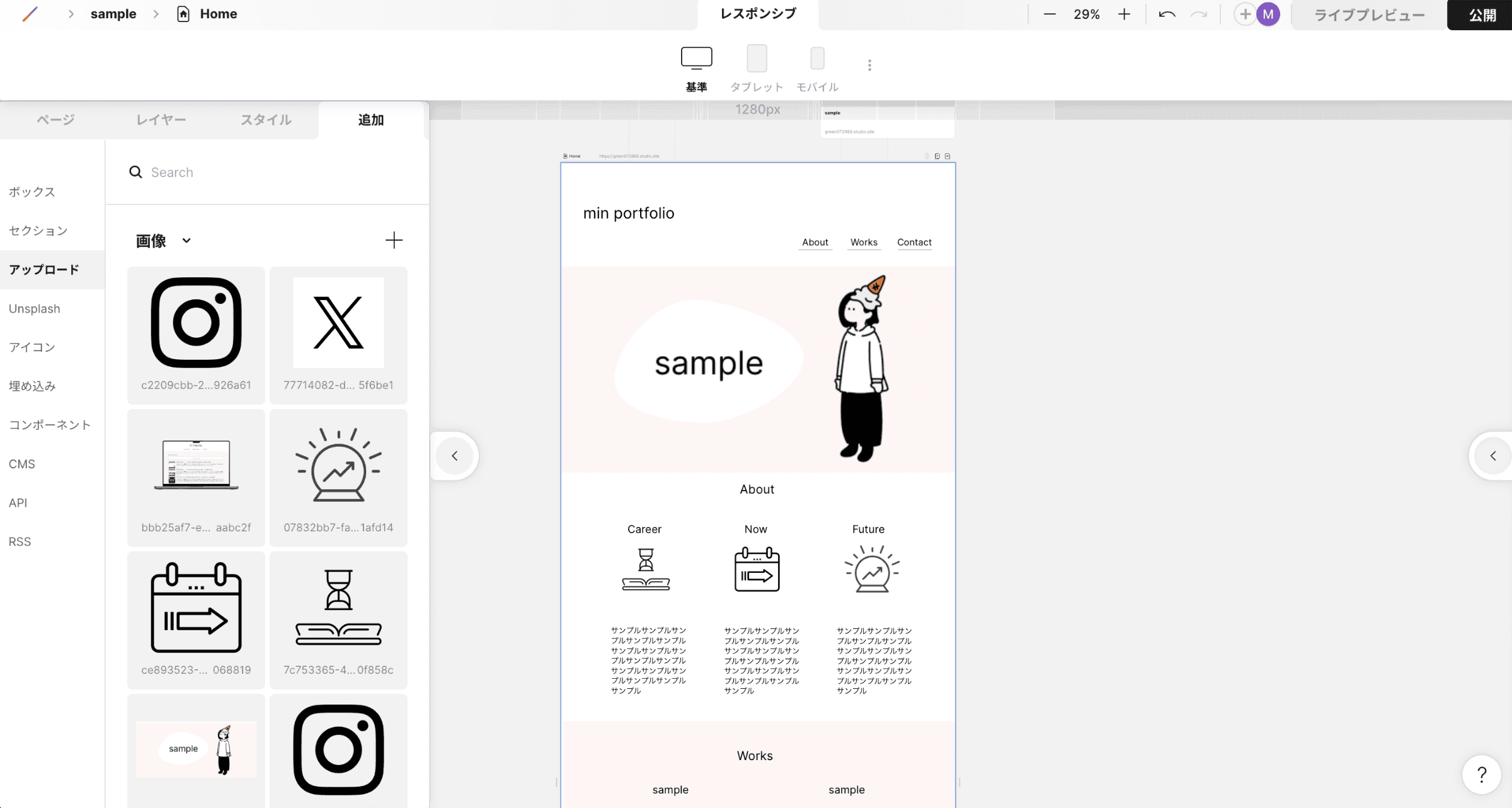
- Paste in Studio — Paste into the Studio editor
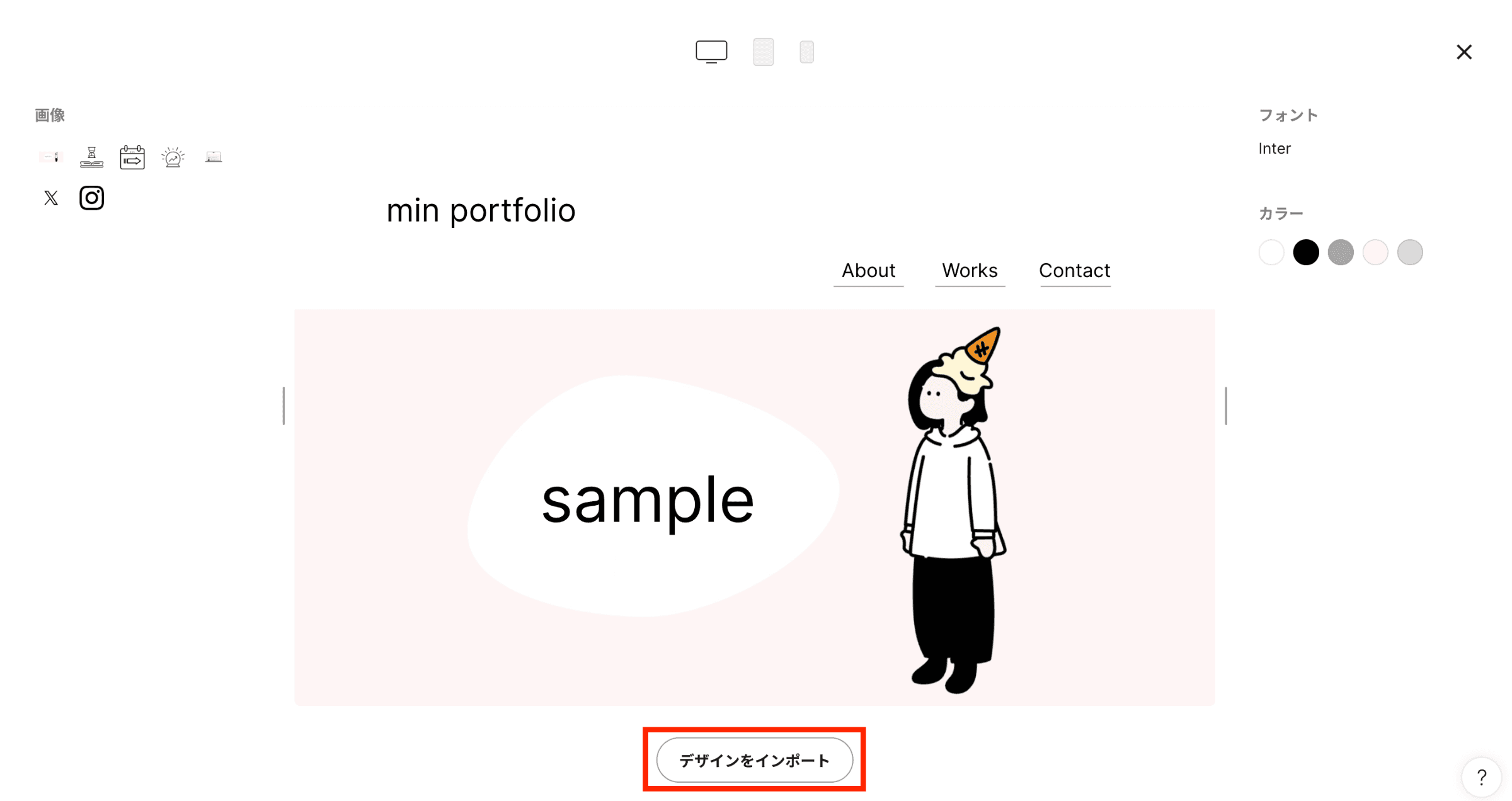
- Run the import — Confirm the conversion settings and complete the import
Important Notes
Not all designs convert perfectly, so keep the following points in mind:

- Designs with many layers — Complex layer structures may not convert accurately
- Rotated elements — Elements with rotation angles may break during conversion
- Mask processing — Complex masks may need to be re-applied manually
- Special blend modes — Some blend modes may not be reproduced in Studio
- Auto Layout — Figma's Auto Layout settings may not be fully carried over
- Gradients — Complex gradients may be simplified
- Effects — Effects like drop shadows may need to be manually re-applied
Best Practices
- Simplify and organize your Figma design before importing
- Use clear, descriptive layer names
- Always verify the display in Studio after importing
- Make fine adjustments on the Studio side
Conclusion
By leveraging the Figma to Studio plugin, you can dramatically reduce the time it takes to go from design to implementation. While perfect conversion isn't always possible, just having the base layout auto-generated significantly improves production efficiency.